How To Fix Bluetooth Interference From 2.4GHz WiFi Routers?
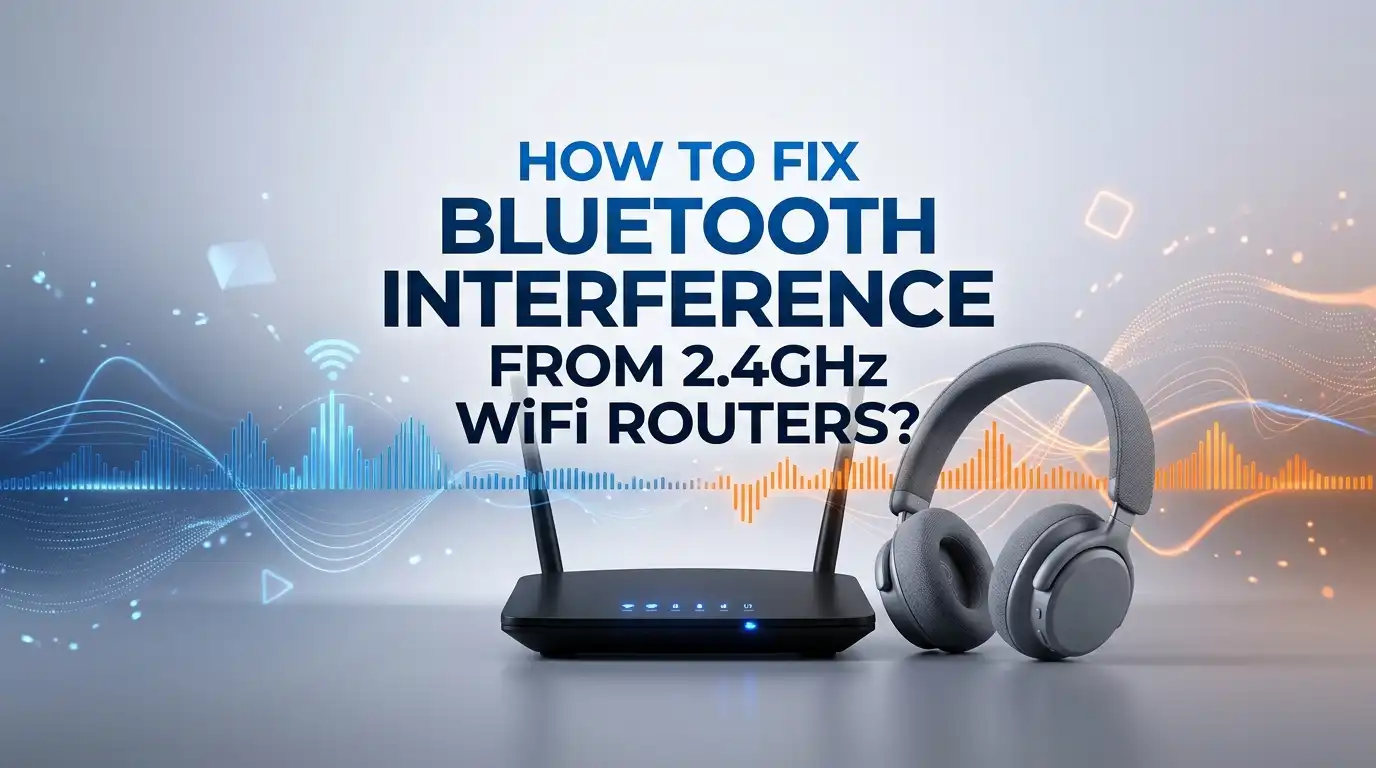
Your wireless earbuds skip a beat. Your Bluetooth mouse lags for a second. Your speaker cuts out right in the middle of a song. If this happens near your WiFi router, you are not imagining things. Your 2.4GHz WiFi and your Bluetooth devices are fighting over the same airspace.
Both technologies use the same 2.4GHz radio band. When they get crowded, they step on each other. The good news is that you can fix most of this at home. You do not need new hardware or an engineering degree. You just need a few smart changes.
This guide breaks the problem down into clear, simple steps. You will learn why the interference happens and how to stop it. Each method comes with honest pros and cons. Let us get your audio smooth and your connection stable again.
Key Takeaways
- WiFi and Bluetooth share the 2.4GHz band. They both transmit in the same frequency range, so heavy WiFi traffic crowds out Bluetooth signals and causes lag, dropouts, and static.
- Switching your WiFi to the 5GHz band is the single best fix. Moving your devices to 5GHz clears the 2.4GHz space and lets Bluetooth breathe freely.
- Channels 1, 6, and 11 are your friends. If you must use 2.4GHz, these three channels do not overlap and reduce conflict with other networks and devices.
- Distance matters more than people think. Keep Bluetooth gear away from the router and away from USB 3.0 ports, which leak radio noise that disrupts 2.4GHz signals.
- Driver and firmware updates often solve hidden coexistence bugs. Modern chips manage WiFi and Bluetooth sharing automatically, but only when the software is current.
- Narrower channel width helps. Setting your 2.4GHz channel width to 20MHz frees up room and improves Bluetooth performance.
Why 2.4GHz WiFi And Bluetooth Interfere With Each Other
Both WiFi and Bluetooth talk in the same neighborhood. The 2.4GHz band is shared free spectrum. Many devices use it, including cordless phones, microwaves, baby monitors, and smart home gear. That makes the space busy.
WiFi sends strong, wide signals to cover your whole home. Bluetooth sends weak, short signals meant for nearby devices. When a loud WiFi signal blasts across the band, the quieter Bluetooth signal gets buried. This is why your earbuds stutter near the router.
The conflict gets worse during heavy use. Streaming video, large downloads, and video calls flood the 2.4GHz band with traffic. Bluetooth then struggles to find a clear gap to send its data. Knowing this root cause helps you pick the right fix. Most solutions below work by giving Bluetooth more clear space to use.
Move Your Devices To The 5GHz WiFi Band
This is the most powerful fix you can make. The 5GHz band is a completely separate highway. Bluetooth cannot reach it, so moving your WiFi traffic there clears the 2.4GHz lane entirely.
Most modern routers broadcast both bands. Look for a network name ending in 5G or 5GHz in your WiFi list. Connect your phone, laptop, and TV to that one. Your Bluetooth devices keep using 2.4GHz with far less competition.
Some routers use “band steering” and hide the 5GHz name. Log into your router settings and split the two bands into separate names if you want full control. This makes it easy to choose which devices go where.
Pros: It nearly eliminates the conflict, it is free, and it boosts WiFi speed too.
Cons: 5GHz has shorter range and weaker wall penetration. Devices far from the router may need to stay on 2.4GHz.
Switch Your 2.4GHz WiFi To Channel 1, 6, Or 11
Sometimes you must keep using 2.4GHz. Maybe a device only supports it. In that case, picking the right channel makes a big difference. WiFi experts recommend channels 1, 6, and 11.
These three channels do not overlap each other. They leave clean gaps in the band where Bluetooth can hop and survive. Other channels overlap and create messy interference for both your WiFi and your Bluetooth.
Log into your router using its address, often 192.168.1.1 or 192.168.0.1. Find the wireless settings. Look for the 2.4GHz channel option and pick 1, 6, or 11. Test each one and keep the channel that feels smoothest.
Pros: It is free, fast to do, and reduces conflict with neighbors too.
Cons: A busy apartment may have all three channels crowded already, so the gain can be small in dense areas.
Set Your 2.4GHz Channel Width To 20MHz
Channel width controls how much space your WiFi takes up. Wider channels carry more speed but eat more of the band. On 2.4GHz, a 40MHz channel is greedy. It leaves almost no room for Bluetooth to work.
The 2.4GHz band is small to begin with. A 40MHz channel covers nearly half of it. That crowds out Bluetooth and other devices fast. Switching to a 20MHz width frees up valuable space.
Go into your router settings and find the channel width or bandwidth option for the 2.4GHz band. Change it from 40MHz or “Auto” to 20MHz. Save and reboot the router. Your Bluetooth devices now have more clear room to hop between.
Pros: It improves Bluetooth stability and reduces conflict with neighbors.
Cons: Your 2.4GHz WiFi speed may drop slightly, though most users barely notice during normal browsing.
Increase The Distance Between Router And Bluetooth Devices
Distance is a simple but underrated fix. Radio signals weaken fast as they travel. When your Bluetooth headphones sit right beside a loud router, the WiFi signal overwhelms them. Moving them apart helps a lot.
Try to keep at least a few feet between your router and your active Bluetooth gear. Place the router on a shelf or higher spot, away from your desk. This small change often stops the worst dropouts during calls and music.
Keep your Bluetooth source and receiver close to each other too. A phone in your pocket connects to earbuds better than a phone across the room. Short Bluetooth links resist interference much better than long ones.
Pros: It costs nothing and works instantly.
Cons: Room layout limits how far you can move things. In small spaces, distance alone may not fully solve the problem.
Keep Bluetooth Away From USB 3.0 Ports And Cables
This cause surprises many people. USB 3.0 ports and devices leak radio noise right in the 2.4GHz range. External drives, hubs, and docks can drown out Bluetooth and 2.4GHz WiFi when they sit too close.
If your Bluetooth dongle plugs into a USB port next to a USB 3.0 drive, expect trouble. Move the Bluetooth dongle to a port on the opposite side of your computer. A short USB extension cable helps you pull it away from the noise.
The same goes for your laptop. Do not rest USB 3.0 hard drives next to your wireless mouse receiver or headphones. Even a few inches of separation reduces the static and stutter you hear.
Pros: It fixes a hidden cause that many guides miss, and it is free.
Cons: You may need a cheap extension cable to gain enough distance on cramped setups.
Update Your WiFi And Bluetooth Drivers
Outdated software causes more interference than people expect. Modern wireless chips manage WiFi and Bluetooth sharing through smart coexistence features. These features only work well when your drivers are current.
On Windows, open Device Manager. Find your network adapter and your Bluetooth adapter, then update both. Visit your laptop maker’s website for the newest versions. Generic drivers often lack the latest coexistence improvements.
For phones and tablets, simply install the latest system updates. Manufacturers fix Bluetooth bugs and tune coexistence with each release. A single update can turn choppy audio into smooth playback overnight.
While you are there, check the advanced driver properties on Windows. Make sure any “Bluetooth Collaboration” or coexistence setting is enabled. This tells your hardware to actively share the band.
Pros: It often fixes deep, invisible problems and is completely free.
Cons: A bad driver release can sometimes cause new issues, so note your old version in case you need to roll back.
Update Your Router Firmware
Your router runs its own software called firmware. Old firmware can handle the 2.4GHz band poorly and manage channels in clumsy ways. Updates often improve how the router shares airspace.
Manufacturers release firmware to fix bugs and boost performance. A current firmware version may handle channel selection and interference far better. This helps both your WiFi and the Bluetooth devices nearby.
Log into your router’s settings page. Look for a section called Firmware, System, or Administration. Many routers can check for updates with one click. Some newer models update themselves automatically in the background.
Always keep the router powered during an update. Interrupting a firmware update can damage the device, so do not unplug it midway.
Pros: It improves overall stability and security at no cost.
Cons: The process takes a few minutes and reboots your network, so do it when no one is online.
Reduce The Number Of Active 2.4GHz Devices
Every device on 2.4GHz adds to the crowd. Smart plugs, bulbs, cameras, and old gadgets all compete for the same air. Trimming this list gives Bluetooth more breathing room.
Walk through your home and count your wireless gear. Move any device that supports 5GHz over to that band. Many smart home items must stay on 2.4GHz, so focus on the ones that can switch.
Turn off devices you rarely use. An old printer or a forgotten tablet may still chatter on the network. Disconnecting them quietly frees up space for the things you actually care about.
Pros: It reduces total congestion and can speed up your whole network.
Cons: Some smart home devices simply cannot leave 2.4GHz, so the improvement depends on your gear.
Use A Wired Connection For Heavy Tasks
You can sidestep the conflict entirely for some devices. A wired Ethernet connection skips the 2.4GHz band completely. This removes that device’s traffic from the crowded air.
Plug your desktop, smart TV, or game console straight into the router with an Ethernet cable. This frees up wireless airspace for everything else, including Bluetooth. It also gives those wired devices a faster, more stable connection.
Even moving one heavy user off WiFi makes a difference. A streaming TV or a gaming PC creates a lot of 2.4GHz traffic. Wiring it up clears a big chunk of the congestion at once.
Pros: It delivers the most stable connection and frees the wireless band.
Cons: Running cables can be awkward, and some devices and rooms make wiring hard or unsightly.
Position Your Router Smartly Around The Home
Where you place the router shapes your whole wireless experience. A router stuffed in a corner or cabinet causes weak, messy signals. Better placement reduces interference for everyone.
Put the router in a central, open spot. Keep it off the floor and away from metal objects, mirrors, and thick walls. These materials reflect and block signals, which can scatter interference toward your Bluetooth devices.
Keep the router away from microwaves and cordless phones. Microwaves blast strong 2.4GHz energy that disrupts both WiFi and Bluetooth. A little separation here prevents sudden dropouts when the microwave runs.
Pros: It improves WiFi coverage and lowers interference at the same time.
Cons: Wiring and outlet locations limit where you can place the router, so the ideal spot is not always possible.
Restart And Reset Your Devices The Right Way
Sometimes the simplest reset clears the trouble. Devices can get stuck on a crowded channel or a glitchy connection. A fresh restart lets them pick cleaner settings.
Start by rebooting your router. Unplug it, wait thirty seconds, then plug it back in. When it restarts, it often scans for and chooses a less crowded channel on its own.
Next, restart your Bluetooth devices. Turn them off, forget the pairing on your phone, then pair them again fresh. This clears old connection errors that can worsen interference effects.
Cycle your computer’s wireless adapters too. Toggle WiFi and Bluetooth off and back on to refresh their coexistence handshake.
Pros: It is the fastest fix to try first and costs nothing.
Cons: The relief can be temporary if the underlying crowding returns, so pair this with a deeper fix above.
When To Consider New Hardware Or Professional Help
Sometimes the fixes are not enough. Very old routers and devices lack good coexistence support. If you have tried everything and still struggle, your hardware may be the limit.
A modern router with strong dual band or tri band support helps a lot. Newer WiFi standards manage the 2.4GHz band more politely. Newer Bluetooth versions also hop between channels more cleverly to dodge WiFi.
If your problem affects a whole office or many users, a professional can run a site survey. They measure interference sources you cannot see and design a cleaner layout.
Pros: New gear and expert help can solve stubborn, long term problems for good.
Cons: Both options cost money, so save them for after the free fixes fall short.
Frequently Asked Questions
Does Bluetooth slow down my WiFi or the other way around?
Both can affect each other on the 2.4GHz band. Bluetooth uses weak signals, so it rarely slows fast WiFi much. Heavy WiFi traffic, however, easily disrupts Bluetooth and causes audio dropouts and lag.
Will switching to 5GHz fix my Bluetooth problems completely?
For most people, yes. Moving your WiFi traffic to 5GHz clears the 2.4GHz band that Bluetooth needs. Bluetooth stays on 2.4GHz, but with far less competition, so dropouts usually stop.
Why does my Bluetooth cut out only when I am downloading files?
Large downloads flood the 2.4GHz band with WiFi traffic. This leaves little room for Bluetooth to send its small packets. The fix is to move your downloads to 5GHz or a wired connection.
Can a microwave really break my Bluetooth connection?
Yes, it can. Microwaves leak strong energy in the 2.4GHz range while running. This interrupts both WiFi and Bluetooth nearby. Keep your devices and router away from the kitchen microwave.
Do I need to buy a new router to stop the interference?
Usually not. Most people fix the problem with free changes like switching to 5GHz, choosing channel 1, 6, or 11, and updating drivers. Consider new hardware only after trying these steps.
Is it safe to change my router settings myself?
Yes, it is safe when you go slowly. Note your current settings before you change anything so you can undo it. Channel and band changes are easy to reverse if needed.
Why does my wireless mouse lag near my external hard drive?
USB 3.0 drives leak radio noise in the 2.4GHz range. This disrupts wireless mice, headphones, and Bluetooth dongles nearby. Move the dongle to a far port or use a short extension cable.

Hi, I’m Frankie Shaw, the founder and writer behind Swittchly 👋. I’m a passionate tech enthusiast who loves exploring the latest gadgets, devices, and electronics that hit the market. Through my honest, research-backed Amazon product reviews, I help readers make smarter buying decisions without the hype or confusion.