Why Is My iPhone Storage Almost Full When I Have Cloud Storage?
You bought extra iCloud storage. You expected your iPhone to feel light and free again. Instead, that annoying “Storage Almost Full” message keeps popping up. It feels like you paid for space you cannot use. You are not imagining things, and you are definitely not alone.
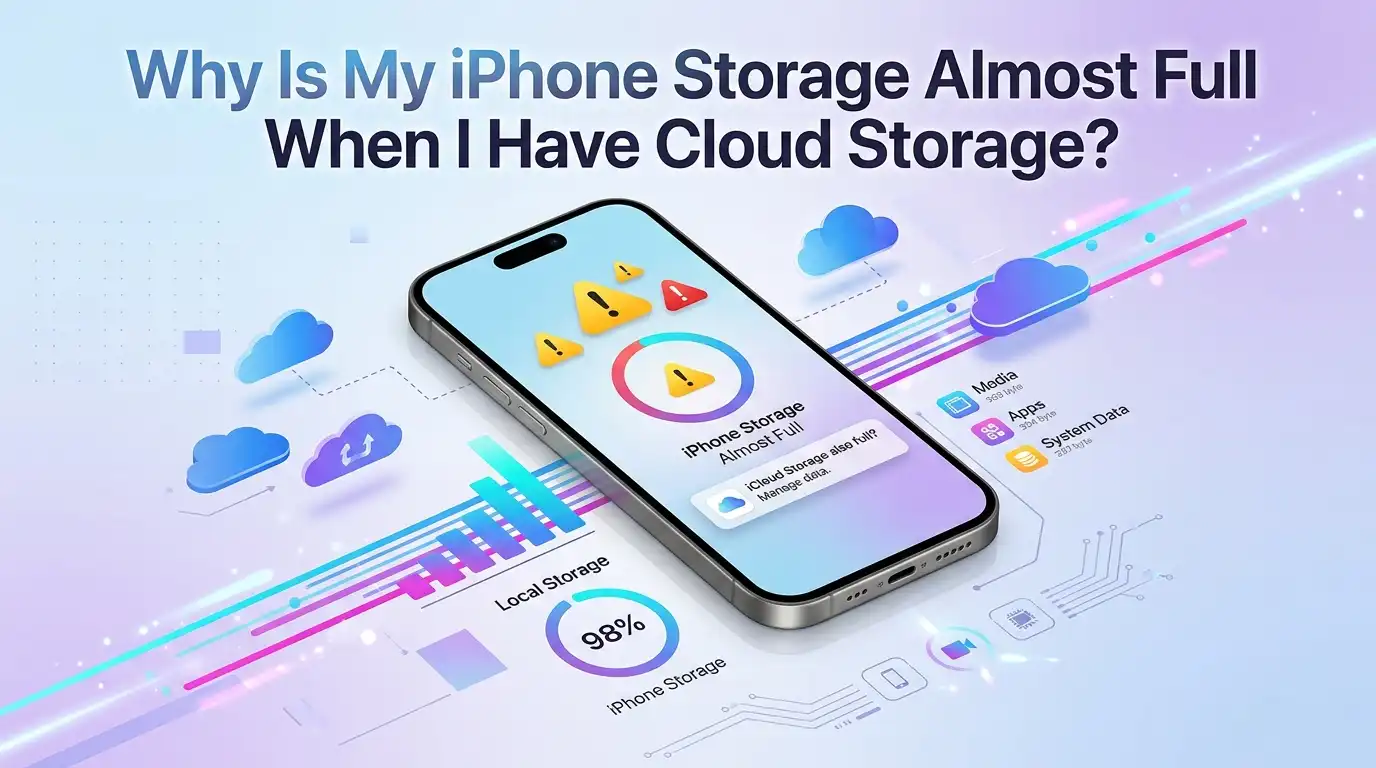
Here is the truth most people miss. iCloud storage and iPhone storage are two completely different things. Buying cloud space does not automatically empty your phone.
They work together, but they are separate buckets. Once you understand how they connect, you can free up gigabytes in minutes.
In a Nutshell:
- iCloud is not the same as iPhone storage. Your phone has physical local storage. iCloud is online space. Paying for one does not shrink the other unless you turn on the right setting.
- Photos and videos are usually the biggest problem. They quietly eat the most space. Turning on “Optimize iPhone Storage” can cut your photo size on the device by up to 80 percent.
- “System Data” can balloon without warning. This hidden category holds caches, logs, and leftover files. It often grows to many gigabytes and confuses people.
- Offloading apps keeps your data but removes the heavy app file. This is a safe, quick win that frees space without losing your progress or settings.
- iCloud Backup does not free your phone. A backup is a safety copy. It saves a snapshot online but leaves all the original files sitting on your device.
- Small habits prevent the problem. Clearing caches, deleting downloads, and managing messages stop the storage warning from coming back.
iCloud Storage and iPhone Storage Are Not the Same Thing
This is the root of all the confusion, so let us make it crystal clear. Your iPhone has built in storage that lives inside the device. This is the 64GB, 128GB, or 256GB you chose when you bought it. It is physical and limited.
iCloud storage is space on Apple’s servers far away from your phone. It is online, not inside your device. When you pay for 50GB or 200GB of iCloud, you add room to the cloud, not to your phone.
Think of it like this. Your phone is your backpack. iCloud is a storage locker across town. Buying a bigger locker does not make your backpack lighter. You must actually move items into the locker first. Many people skip that step and stay confused.
How iCloud Photos Actually Works (The Setting You Missed)
Photos and videos take up the most room on almost every iPhone. iCloud Photos is the feature that can fix this, but only if it is set up right. Many people turn it on and assume their phone is now empty. That is not how it works by default.
Go to Settings, then Photos. You will see two choices. The first is “Optimize iPhone Storage.” The second is “Download and Keep Originals.” The second option keeps full size copies on your phone, which fills it fast.
When you pick “Optimize iPhone Storage,” your phone keeps small versions and stores full quality copies in iCloud. Apple says this can reduce local photo storage to just 10 to 20 percent of the full size. That is a huge saving. Switch to this setting and watch space return.
Understanding iCloud Backup vs iCloud Sync
People mix these two up all the time, and it causes real frustration. They are not the same, and they do different jobs. Knowing the difference helps you stop wasting space.
iCloud Backup is a safety snapshot. It copies your settings, app data, and device info to the cloud. If your phone breaks or gets lost, you restore from this backup. But the backup is a copy. It leaves all your original files on your phone.
iCloud Sync, like iCloud Photos or iCloud Drive, keeps files matched across devices. Sync can actually free local space when optimization is on. Backup never frees space on your device by itself. So if you only rely on backup, your phone stays full. You need sync features with optimization to lighten the load.
Find Out What Is Eating Your Storage First
Before you delete anything, see the full picture. Guessing wastes time and risks removing things you need. Your iPhone has a built in tool that shows you exactly where the space went.
Open Settings, tap General, then tap iPhone Storage. Wait a few seconds for the bar graph to load. You will see colored sections for Photos, Apps, Media, Messages, and System Data. The list below ranks every app by size.
This screen is your map. It also gives smart suggestions at the top, like offloading unused apps or reviewing large attachments. Tap any app to see how much is the app itself versus its documents and data. Now you know your real enemies. Start with the biggest items for the fastest results.
Pros: It is free, built in, and accurate. Cons: The graph can take time to update, and “System Data” stays vague.
Fix the Mysterious “System Data” That Keeps Growing
Many users panic when “System Data” shows 30GB, 50GB, or more. This category holds caches, logs, temporary files, and leftover bits from apps. It grows quietly in the background.
Apple does not give a single button to clear it, which is frustrating. But you can shrink it with a few tricks. First, restart your iPhone. A simple restart clears some temporary caches automatically.
Next, clear caches inside heavy apps like streaming, browsing, and editing apps. Many of these store huge cache files counted as System Data.
If it is still massive, back up your phone and reset it, or restore as new. This is the most thorough fix. As a lighter option, update iOS, since updates often clean junk. System Data should settle back to a normal few gigabytes after these steps.
Offload Unused Apps to Free Space Instantly
This is one of the easiest wins, and most people overlook it. Offloading removes the heavy app file but keeps all your data and documents. When you reinstall the app, everything comes right back.
To do one app, go to Settings, General, iPhone Storage, tap the app, then tap “Offload App.” To make it automatic, go to Settings, Apps, App Store, and turn on “Offload Unused Apps.” Your phone then removes apps you have not used in a while.
The grayed out icon with a small cloud stays on your home screen. One tap downloads it again whenever you need it. This is perfect for big games or apps you use rarely.
Pros: Fast, safe, and keeps your settings and progress. Cons: You need internet to reinstall, and offloaded apps will not work offline until you download them again.
Delete Apps Completely When Offloading Is Not Enough
Sometimes the app data itself is the problem, not just the app file. Offloading keeps that data, so it does not always help. In that case, deleting fully is the better move.
Go to Settings, General, iPhone Storage, tap the app, and choose “Delete App.” This removes the app and all its documents and data. You free the maximum possible space this way.
Some apps store massive hidden data, like messaging apps with years of media. Deleting and reinstalling clears that bloat and gives you a fresh, lighter version.
Just make sure anything important is saved or synced first. For social and chat apps, check that your account backs up to the cloud before you delete. After reinstalling, log back in and your account loads, even if old local cache is gone.
Pros: Frees the most space. Cons: You lose local data unless it is synced, and you must set the app up again.
Clear Safari and Browser Cache to Reclaim Hidden Space
Your web browser quietly stores website data, cookies, and cached pages. Over months, this builds into hundreds of megabytes or more. Clearing it is quick and harmless.
For Safari, open Settings, scroll to Apps, tap Safari, then tap “Clear History and Website Data.” This wipes the cache and frees space at once. If you want to keep your history, go to Safari, Advanced, Website Data instead and remove only the data.
For Chrome or other browsers, open the app, go to settings, and find the clear browsing data option. Each browser stores its own cache, so clear them all. You may need to log in to some sites again afterward, which is a small trade for the space you gain.
Pros: Simple and frees space fast. Cons: It signs you out of sites and may slow first loads briefly.
Manage Messages and Large Attachments
Your Messages app can hold years of photos, videos, and files. These attachments pile up and quietly fill your storage. Most people never think to check here.
Go to Settings, General, iPhone Storage, then tap Messages. You will see options like “Review Large Attachments.” Tap it, then delete the biggest videos and images you no longer need.
You can also make messages delete themselves automatically. Open Settings, Messages, Keep Messages, and choose 30 Days or 1 Year instead of Forever. This stops old conversations from hoarding space forever.
Be careful with this setting, because it permanently removes old texts and media. Save anything sentimental first. Clearing message attachments often frees several gigabytes in one go, which makes it one of the most rewarding cleanups on this list.
Empty the “Recently Deleted” Folder in Photos
Here is a sneaky trap that fools almost everyone. When you delete photos, they are not gone right away. They move to a “Recently Deleted” album and sit there for up to 30 days.
This means deleted photos still take up space on your phone. You think you cleaned up, but the files are hiding. You must empty this folder to truly free the space.
Open the Photos app, tap the Albums tab, scroll down, and tap “Recently Deleted.” You may need Face ID or your passcode. Then tap to delete all and confirm. The space frees up immediately.
Make this a habit after every cleanup session. Always empty Recently Deleted right after deleting photos and videos. It is a two second step that turns your hard work into real, usable storage on your device.
Turn On iCloud Drive and Move Files Off Your Device
Photos are not the only files that fill your phone. Documents, PDFs, downloads, and project files add up too. iCloud Drive helps you move these into the cloud and out of your phone.
Go to Settings, tap your name at the top, tap iCloud, then turn on iCloud Drive. Files in the Files app can then sync to the cloud. With optimization, your phone keeps small placeholders and downloads full files only when needed.
This works well for people who keep many documents and downloads. It frees local space while keeping everything one tap away. Just remember you need internet to open files that live only in the cloud.
Pros: Frees space and keeps files accessible everywhere. Cons: You need a connection to open offline only files, and large libraries can use a lot of iCloud space.
Buy More iCloud Storage the Smart Way (If You Truly Need It)
Sometimes you genuinely have more data than your phone can hold. In that case, more iCloud storage is a fair solution, but only with the right settings. Buying space alone does nothing unless you use sync and optimization.
The free iCloud tier gives just 5GB, which fills almost instantly. Paid tiers add 50GB, 200GB, or more. Before you upgrade, turn on “Optimize iPhone Storage” for Photos. Otherwise the cloud space sits unused while your phone stays full.
Match the plan to your real needs. Check your current usage in Settings, your name, iCloud, Manage Account Storage. This shows what is taking room online.
Pros: Lets you keep huge photo and file libraries with a light phone. Cons: It is a recurring cost, and it only helps when paired with the correct device settings.
Build Simple Habits So Storage Never Fills Up Again
Fixing storage once feels great. Keeping it clean feels even better. A few small routines stop that warning from ever returning.
Once a month, open iPhone Storage and review the biggest items. Delete photos you do not want, empty Recently Deleted, and clear message attachments. Turn on “Offload Unused Apps” so your phone manages itself.
Keep “Optimize iPhone Storage” on for Photos at all times. Clear browser cache every few weeks. Restart your phone weekly to clear temporary System Data.
These habits take only minutes. Think of it like tidying a room a little at a time instead of one giant cleanup. When you stay ahead of the clutter, your iPhone runs faster, feels lighter, and that “Storage Almost Full” message disappears for good.
Frequently Asked Questions
Why does my iPhone say storage is full when iCloud has space?
Because iCloud and iPhone storage are separate. iCloud is online space, while your phone has its own physical storage. Buying iCloud space does not free your phone unless you turn on “Optimize iPhone Storage” and use sync features that move full files to the cloud.
Does iCloud Backup free up space on my iPhone?
No. A backup is only a safety copy stored online. It saves a snapshot of your data but leaves every original file on your device. To free local space, you need iCloud sync features with optimization turned on, not just a backup.
What is “System Data” on my iPhone and is it safe to clear?
System Data holds caches, logs, and temporary files. It is generally safe to shrink. Restart your phone, clear app caches, and update iOS. If it stays huge, back up and restore your device for a deep clean.
Will offloading an app delete my photos or progress?
No. Offloading keeps all your data, documents, and settings. It only removes the heavy app file. When you reinstall the app, everything returns exactly as you left it, as long as you have an internet connection.
How do I free up the most space quickly?
Start with the biggest items. Turn on “Optimize iPhone Storage” for Photos, empty Recently Deleted, clear message attachments, and offload unused apps. These four steps usually free several gigabytes within just a few minutes.
Is it better to delete or offload apps?
It depends. Offload when the app file is large but its data is small and worth keeping. Delete fully when the app stores massive local data you no longer need. Deleting frees more space, but you lose anything not synced.

Hi, I’m Frankie Shaw, the founder and writer behind Swittchly 👋. I’m a passionate tech enthusiast who loves exploring the latest gadgets, devices, and electronics that hit the market. Through my honest, research-backed Amazon product reviews, I help readers make smarter buying decisions without the hype or confusion.