Why Is My Router Dropping The Internet Connection But Still Broadcasting WiFi?
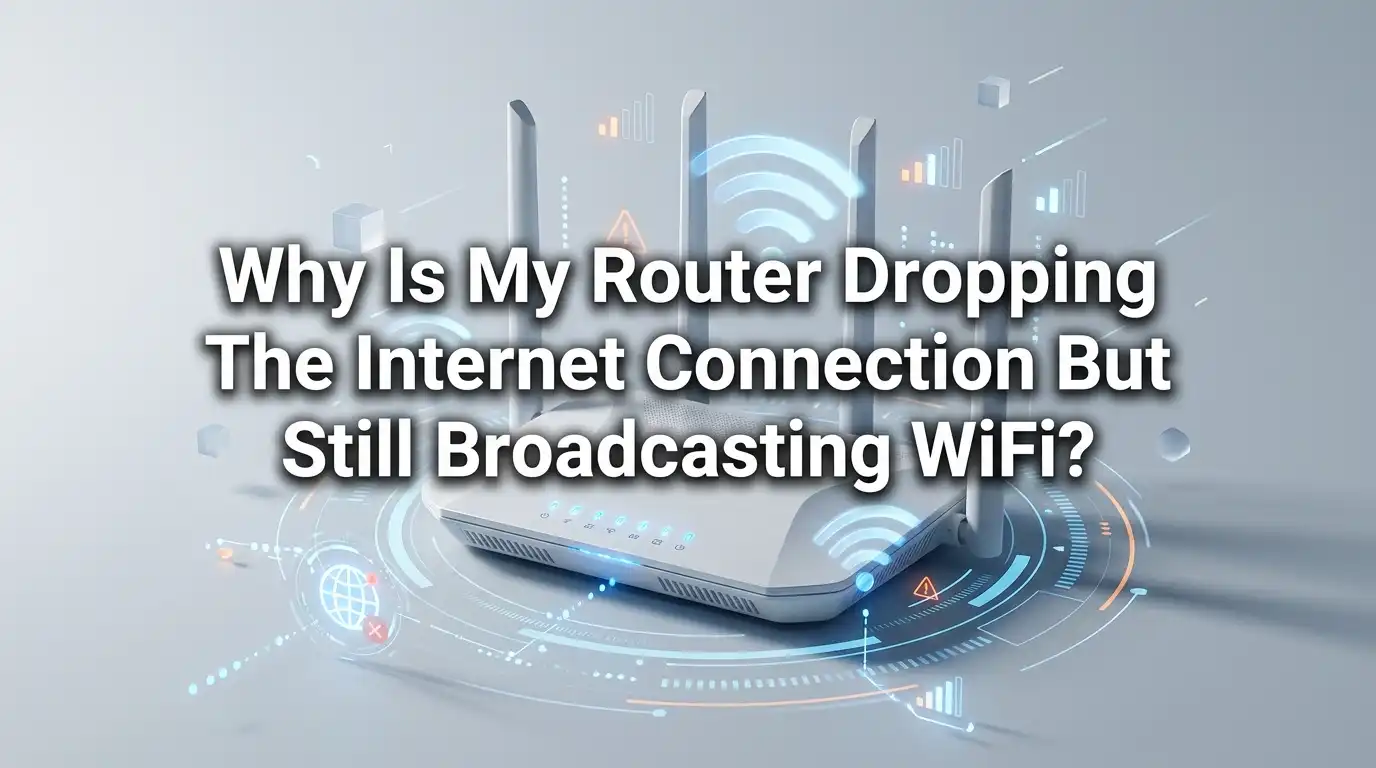
Your WiFi name still shows up on your phone. The signal bars look full. But the internet just stopped working. This problem confuses many people every day. Your router keeps broadcasting WiFi, yet web pages refuse to load.
You sit there wondering what went wrong. The good news is simple. This issue has clear causes and clear fixes. You do not need to be a tech expert to solve it.
This guide walks you through every reason and every solution in plain language. You will learn how to spot the real cause fast. You will also learn how to fix it step by step. Let us get your connection back to normal.
In A Nutshell:
- WiFi and internet are two different things. Your router can broadcast WiFi to your devices while losing its link to your internet provider. The signal stays strong, but the connection to the outside web breaks.
- The modem is often the real culprit. Many people blame the router. But the modem sits between your router and your provider. A failing modem cuts internet while WiFi keeps running fine.
- Overheating causes random drops. A hot router glitches and loses its connection. Good airflow and a cool spot fix this fast in many homes.
- Old firmware creates bugs. Routers run software that needs updates. Skipping updates leads to constant disconnections and weak performance over time.
- Loose cables break the chain quietly. A loose coaxial or Ethernet cable still passes a weak signal. The internet drops the moment the cable shifts even slightly.
- Your provider may be the problem. Sometimes nothing is wrong on your end. An ISP outage stops the internet while your router happily broadcasts WiFi.
What Does It Mean When WiFi Works But The Internet Drops?
Many people mix up two separate things. WiFi is the wireless signal your router sends to your phone, laptop, and TV. It connects your devices to the router inside your home. The internet is something else. It is the link from your router to your provider through a modem.
So your router can do its local job perfectly. It still talks to your devices. That is why the WiFi name shows up. But the path to the outside world breaks somewhere. Your phone says connected, no internet because of this gap.
Think of it like a phone with no service. The phone turns on fine. The screen works. But no calls go through. Once you understand this split, fixing the issue gets much easier.
Restart Your Modem And Router The Right Way
This is the first and easiest fix. A restart clears small glitches in both devices. It also forces them to reconnect with your provider. Many random drops vanish after a clean reboot.
Follow these steps in order. First, unplug the power cable from your modem. Next, unplug the power cable from your router. Wait a full 60 seconds.
This gap matters because it lets the devices reset fully. Then plug the modem back in first. Wait two minutes for it to settle. After that, plug your router back in.
Pros: This fix is free, fast, and safe. It solves most short term problems.
Cons: It only works for minor glitches. If the cause is hardware or your provider, the drops come back soon.
Check If The Problem Is Your Modem Or Router
You must find the guilty device before you waste time. The modem and router each play a different role. The modem brings the internet into your home. The router shares that internet over WiFi.
Here is a quick test. Connect a laptop directly to your modem with an Ethernet cable. Skip the router for now. If the internet works this way, your router is the problem. If it still drops, the modem or your provider is the cause.
Also watch the lights on your modem. A blinking or red light during a drop points straight to the modem. A steady light means the modem is fine.
Pros: This test gives you a clear answer in minutes.
Cons: You need an Ethernet cable and a device with a port to try it.
Look For Overheating And Poor Ventilation
Routers run hot during the day. Heat builds up inside the case over hours. An overheated router glitches and drops the internet at random. This is a very common cause that people forget.
Touch your router after a few hours of use. If it feels very warm or hot, heat is likely your issue. Many users report drops that stop once the router cools down. The fix is simple and cheap.
Move your router to an open spot with airflow. Keep it away from walls, shelves, and other devices. Never stack items on top of it. Some people aim a small fan at the case for extra cooling.
Pros: Better airflow gives instant results and costs nothing.
Cons: A router that overheats often may be old and near the end of its life.
Update Your Router Firmware To Fix Bugs
Your router runs software called firmware. This software controls how the router works. Old firmware carries bugs that cause random drops. Makers release updates to fix these problems and add security.
Log in to your router to check the version. Open a web browser and type the router IP address. You find this address on a sticker on the device. Enter the admin name and password. Look for a section named firmware or system update.
Compare your version with the latest one online. Search the brand and model with the words latest firmware. Install the update if a newer one exists. Do not unplug the router during this step.
Pros: Updates fix bugs, boost speed, and improve safety.
Cons: A failed update can harm the router, so follow steps with care.
Inspect Your Cables For Damage And Loose Ends
Cables cause more problems than people expect. A loose cable still passes a weak signal, which makes the issue hard to spot. The internet drops the moment the cable moves even a tiny bit.
Check every cable in your setup. Look at the coaxial cable that screws into the modem. Make sure it is tight. Look at the Ethernet cable between the modem and router. It should click into place and stay firm.
Search for chew marks, kinks, and cuts along each cable. Pets and furniture often damage cables over time. Replace any cable that looks worn or bent. A damaged Ethernet cable is cheap and easy to swap.
Pros: Fixing cables is low cost and often solves stubborn drops.
Cons: Coaxial and fiber cables need special tools, so call your provider for those.
Confirm If Your Internet Provider Is Down
Sometimes the fault is not yours at all. Your provider may have an outage in your area. During an outage, your router still broadcasts WiFi, but no internet flows in.
Check this before you blame your own gear. Use your phone with mobile data to visit an outage checker site. Sites like Downdetector show live reports from other users. A spike in reports means many people in your area face the same issue.
You can also open your provider app or call their support line. Ask them about outages at your address. Most providers keep records of past drops too. This helps you learn if the trouble repeats often.
Pros: This step saves hours of pointless troubleshooting.
Cons: You cannot fix an outage yourself. You must wait for the provider.
Change Your DNS Settings For A Stable Connection
DNS works like a phone book for the internet. It turns website names into numbers your device can reach. A slow or broken DNS server makes the internet seem dead even when it works. Your provider sets the default DNS, and it sometimes fails.
You can switch to a faster public DNS. Popular free options are Google at 8.8.8.8 and Cloudflare at 1.1.1.1. These servers are quick and reliable. You change DNS in your router settings or on each device.
Open your network settings and find the DNS field. Set it to manual. Type the new numbers in place of the old ones. Save the change and restart your connection.
Pros: Better DNS speeds up browsing and cuts certain drops.
Cons: DNS fixes only some cases, not hardware or signal problems.
Reduce WiFi Channel Interference And Congestion
Your router sends WiFi on radio channels. Nearby routers use the same channels too. When many routers crowd one channel, your connection slows and drops. This is very common in apartments and busy streets.
The 2.4GHz band gets crowded fast. The 5GHz band is faster and cleaner but reaches shorter distances. Try moving your devices to the 5GHz network for a more stable link. Microwaves and baby monitors also disturb the 2.4GHz band.
Use a WiFi analyzer app to scan channels around you. The app shows which channels are busy. On 2.4GHz, pick channel 1, 6, or 11 for best results. Change the channel in your router settings.
Pros: Switching channels reduces drops in crowded areas.
Cons: In packed buildings, even the best channel may stay busy.
Manage Too Many Devices On Your Network
Every device on your WiFi uses bandwidth. A cheap router struggles when too many devices connect at once. Phones, TVs, cameras, and smart bulbs all add load. The router can choke and drop the internet under pressure.
Count how many devices use your network. Smart homes often run twenty or more without notice. Old routers handle only a handful well. Heavy use like streaming and gaming makes this worse.
Remove devices you do not need right now. Disconnect idle gadgets from the WiFi. You can also set limits in your router settings. A bandwidth hungry app in the background can hog the whole connection.
Pros: Freeing up devices restores speed and stops overload drops.
Cons: A growing smart home may simply need a stronger router or plan.
Reset Your Router To Factory Settings
A factory reset wipes all your custom settings. It returns the router to how it came from the box. This clears deep glitches that simple restarts cannot fix. Use this step when other fixes fail.
Find the small reset button on the back of your router. Press and hold it for about ten seconds with a pin. The lights will flash as the router resets. Wait for it to reboot fully before you touch it.
You must set up your network again after this. You will create a new WiFi name and password. Keep your provider details handy in case you need them.
Pros: A reset removes hidden bugs and bad settings for good.
Cons: You lose all your custom setup and must start fresh.
Know When To Replace Old Or Faulty Hardware
Sometimes a fix is not enough. Old routers wear out and fail over time. A router more than four or five years old often causes repeat drops. The parts inside slowly weaken with daily heat and use.
Watch for clear warning signs. Frequent drops after every fix point to dying hardware. A router that overheats fast is also near its end. Slow speeds on modern devices show the router cannot keep up.
A newer model handles more devices and runs cooler. It also supports faster WiFi standards for better range. If your provider supplied the modem, ask them for a free replacement when it fails.
Pros: New hardware ends repeat drops and improves your whole network.
Cons: A good router costs money, and setup takes some time.
When To Call Your Internet Provider For Help
You have tried every fix at home. The internet still drops while WiFi stays on. At this point, your provider has tools you do not. They can test the line right to your house.
Call their technical support and explain your steps. Tell them you already restarted and checked cables. Ask them to test your signal levels from their end. Request a technician visit if the issue runs deep.
A technician can check the line on the pole. They can swap a faulty modem or fix wiring outside. Keep notes on when the drops happen. This record helps them find the pattern fast.
Pros: Providers solve line and equipment faults you cannot reach.
Cons: Visits take time to schedule and may carry a fee in some cases.
Frequently Asked Questions
Why does my WiFi show full bars but no internet?
Full bars mean your device reaches the router with a strong signal. But the router lost its link to your provider through the modem. The local WiFi works while the outside connection fails. Check your modem lights and cables first.
How do I know if it is my router or my modem?
Connect a laptop straight to the modem with an Ethernet cable. Skip the router for the test. If the internet works, the router is at fault. If it still drops, the modem or your provider is the cause.
Can an overheated router cause the internet to drop?
Yes, heat is a common cause of random drops. A hot router glitches and loses its connection. Touch the case after hours of use. If it feels hot, move it to an open, cool spot with good airflow.
How often should I restart my router?
A restart once a week keeps things fresh and clears small glitches. You can also restart it any time the internet drops. Some people set a timer to reboot the router at night automatically.
Will changing my DNS stop the drops?
A new DNS helps when the problem is a slow or broken DNS server. It speeds up browsing and fixes some load failures. But DNS will not solve hardware faults, loose cables, or signal trouble.
What if nothing fixes the problem?
Call your internet provider when all home fixes fail. They can test the line to your house and check signal levels. A technician can swap a bad modem or fix outside wiring you cannot reach.

Hi, I’m Frankie Shaw, the founder and writer behind Swittchly 👋. I’m a passionate tech enthusiast who loves exploring the latest gadgets, devices, and electronics that hit the market. Through my honest, research-backed Amazon product reviews, I help readers make smarter buying decisions without the hype or confusion.