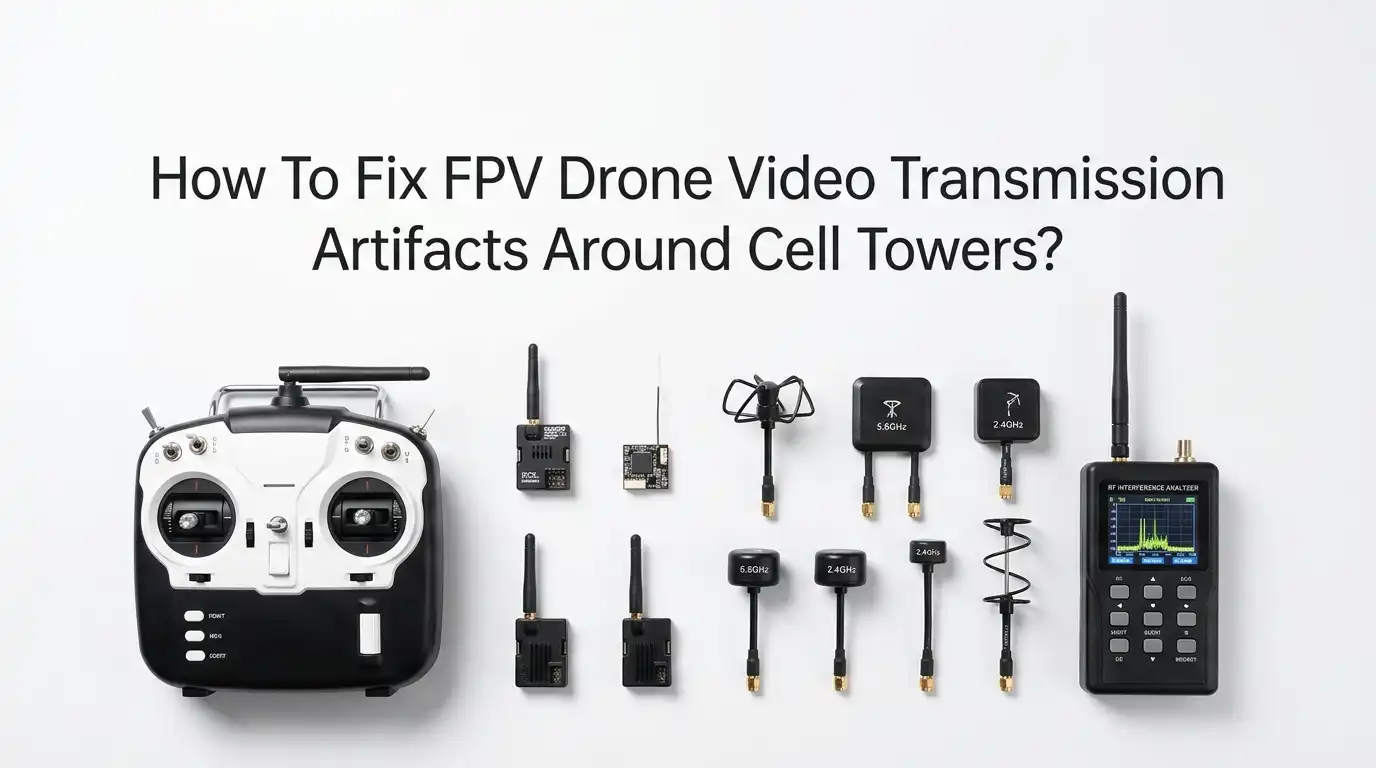
How To Fix FPV Drone Video Transmission Artifacts Around Cell Towers?
Flying your FPV drone near a cell tower can turn a smooth flight into a stressful mess. One moment your video feed looks crisp. The next moment you see static lines, color blocks, screen freezes, or a full signal drop.
These problems are called video transmission artifacts. They happen because cell towers blast strong radio energy into the air, and that energy fights with your drone’s video signal.
The good news is simple. You can fix most of these issues. You do not need expensive gear or deep engineering skills. You just need to understand what causes the noise and apply the right steps.
Key Takeaways
- Cell towers create strong RF noise. They transmit on bands close to your 2.4GHz control link and sometimes near your 5.8GHz video link. This raises the noise floor and weakens your clean signal.
- Distance is your best friend. Moving even 50 to 100 meters away from a tower often clears up most artifacts instantly. Physical separation beats almost every other fix.
- Antennas matter more than power. Good circularly polarized antennas, correct polarity, and a diversity receiver fix more problems than simply raising your VTX power.
- Channel choice changes everything. Picking a clean video channel and using Raceband spacing helps your signal avoid crowded frequencies near towers.
- Clean power stops self-noise. A bad ground, loose wires, or missing capacitor can mimic tower interference. Fix your own drone first before blaming the tower.
- Digital systems handle noise better. HDZero, DJI, and Walksnail recover from interference more gracefully than analog, though no system is fully immune.
Why Cell Towers Cause FPV Video Artifacts
Cell towers send out powerful radio signals all day. These signals cover wide areas, so they push a lot of energy into the sky. Your FPV drone uses weak signals by comparison. When the tower energy enters your receiver, it crowds out your video feed.
This is called raising the noise floor. Think of it like trying to hear a friend whisper inside a loud concert. The whisper is your video. The concert is the tower. Even if your friend speaks normally, the noise wins.
Some towers operate near the 2.4GHz band that your control link uses. Others sit close enough to 5.8GHz to disturb your video. The result is static, color blocks, screen tearing, and sudden freezes. Understanding this helps you choose the right fix.
How To Identify Tower Interference vs Drone Faults
Before you fix anything, you must know the real source. Many pilots blame cell towers when the true problem sits inside their own drone. A quick test saves you hours of frustration.
First, fly the same drone in an open field far from any tower. If the video looks clean there, the tower is likely your culprit. If the artifacts follow you everywhere, the fault is inside your build.
Watch the pattern too. Tower interference often appears as sudden bursts that come and go as you move. Internal faults usually show steady, repeating noise that scales with throttle or motor RPM. Bench testing with props off also helps. If video breaks up with motors spinning but is clean when still, you have an electrical noise issue, not a tower issue.
Step One: Increase Your Distance From The Tower
The simplest fix is also the most effective. Move away from the tower. Radio energy fades quickly with distance. Doubling your distance can cut the interference power by a large amount.
Try to keep at least 100 meters of separation between your launch point and the base of the tower. If you must fly closer, plan your flight path so the drone spends little time directly beside the antenna array.
Pros: This costs nothing. It works instantly. It needs no new gear or settings.
Cons: It limits where you can fly. Some locations have towers everywhere, so finding clear space is hard. You may lose access to a favorite spot. Still, distance remains the single most reliable solution for most pilots, so try it first before spending money.
Step Two: Choose The Right Video Channel
Your video transmitter sends on a chosen channel. Some channels sit closer to tower frequencies than others. Switching channels can move your signal away from the noise. This simple change often clears artifacts in seconds.
Use your goggles or VTX menu to scan the band. Look for a channel with the lowest background noise. Many goggles have a spectrum analyzer that shows you crowded versus clean frequencies.
Raceband spacing gives wider gaps between channels, which reduces overlap with nearby signals. Test two or three channels before each flight near a tower.
Pros: Free and fast. It needs no hardware. It often fixes the problem alone.
Cons: Near very strong towers, every channel may suffer. You also need to confirm no other pilots use the same channel to avoid clashing with their feed.
Step Three: Upgrade To Circularly Polarized Antennas
Antenna type makes a huge difference. Many cheap drones ship with simple linear antennas. These pick up noise from every direction. Circularly polarized (CP) antennas reject reflected and mismatched signals, which includes much of the junk towers throw out.
CP antennas use a spiral shape that filters signals by their rotation. Right hand circular polarization (RHCP) is the common standard, so match both your drone and your goggles to the same hand.
If your VTX antenna and receiver antenna use opposite polarity, your signal drops badly. Always confirm both ends match.
Pros: Big jump in clarity. Strong rejection of multipath and stray noise. Affordable upgrade.
Cons: CP antennas cost more than stock linear types. Mixing RHCP and LHCP by mistake makes things worse, so you must double check the labels before flying.
Step Four: Use A Diversity Receiver Setup
A diversity receiver uses two or more antennas at once. It listens to all of them and picks the strongest, cleanest signal at every moment. This setup hides brief interference spikes that a single antenna would show as artifacts.
Pair one omnidirectional antenna with one directional patch antenna. The omni covers nearby flying. The patch focuses on distance. When the tower disrupts one antenna, the receiver switches to the other.
This seamless switching keeps your video smooth even in noisy areas. Many ground stations and goggles support diversity out of the box.
Pros: Smoother feed near towers. Better range. Fewer sudden dropouts.
Cons: It costs more than a single receiver. It adds weight and setup time on the ground side. For casual short range flying, the benefit may feel small compared to the price.
Step Five: Adjust Your VTX Power Wisely
Many pilots think more power always wins. That is not true near towers. Higher power can interfere with your own control link and with nearby channels, which sometimes makes artifacts worse.
Start with a moderate level like 200 to 400 milliwatts. Raise it only if your video stays weak after other fixes. Too much power close to your receiver can overload it and cause noise rather than fix it.
Use SmartAudio or your VTX menu to change power in the field. Match your power to your real flight distance instead of maxing it out by habit.
Pros: Correct power improves penetration through obstacles and noise. Lower power saves heat and battery.
Cons: Raising power can crowd other pilots and break local rules. High power also drains your pack faster and heats the VTX, which risks damage on the ground.
Step Six: Clean Up Your Drone’s Power And Wiring
Sometimes the noise is not from the tower at all. Dirty power inside your drone creates the same artifacts. A loose ground wire, a bad solder joint, or unshielded cables let electrical noise leak into your video.
Resolder the power and ground pads on your VTX. Keep video wires short and away from motor wires. Add a low ESR capacitor across your main power input to smooth voltage spikes.
This step removes self made noise so you can clearly judge true tower interference. A clean build gives every other fix a better chance to work.
Pros: Fixes a common hidden cause. Improves overall reliability. Cheap to do.
Cons: It needs soldering skill and tools. A wrong connection can damage parts. It takes time and patience on the bench.
Step Seven: Mount Antennas In The Best Position
Where you place your antenna changes how much noise it grabs. Keep your VTX antenna upright and away from carbon frame parts. Carbon fiber blocks signals and creates dead zones.
On the ground side, mount your goggle or receiver antennas high and clear of your body. Your own body absorbs 5.8GHz signals, so standing in the wrong way can cut your feed.
Point directional antennas toward your flight area. Keep the VTX antenna tip free of obstructions. Small placement changes often beat expensive upgrades.
Pros: Free improvement. Works with gear you already own. Reduces blind spots.
Cons: Requires testing and adjustment. Poor mounting can stress the antenna connector and cause cracks. You may need to reposition between flights as conditions change.
Step Eight: Switch To A Digital Video System
Analog video shows noise as instant static and color bars. Digital systems handle interference more gracefully. HDZero, DJI, and Walksnail use error correction that rebuilds parts of the picture even when noise hits.
When a digital link weakens, it usually shows brief blockiness or a short freeze, then recovers. Analog gives you warning static but degrades faster in heavy noise.
No system is fully immune to a strong tower. Still, digital often keeps a usable picture longer. Consider a digital upgrade if you fly often in busy urban areas.
Pros: Cleaner picture. Better noise recovery. Sharp HD detail.
Cons: Higher cost. More latency than analog in some systems. Digital freezes can hide your drone’s true state during a critical moment, which feels riskier than analog static.
Step Nine: Add Shielding And Ferrite Beads
Shielding blocks stray RF from reaching sensitive parts. Wrap noisy components or cables in copper or aluminum tape to form a barrier. Ground the shield properly so it drains the noise away.
Ferrite beads clip onto wires and absorb high frequency interference. Place them on camera and VTX cables. These small rings reduce the noise that travels along your wiring.
Test after each change. Add shielding one piece at a time so you know what actually helped.
Pros: Targets stubborn noise that other fixes miss. Cheap materials. Lightweight.
Cons: Adds slight weight. Poor grounding can make shielding useless or even harmful. It takes trial and error to get right, and overdoing it clutters your build.
Step Ten: Plan Flights Around Tower Locations
Smart planning prevents problems before they start. Scout your area for towers before you launch. Use a map or a cell tower locator app to find antenna sites near your spot.
Plan a flight path that keeps your drone away from the strongest noise zones. Avoid flying directly between your goggles and the tower, since the tower then sits in your line of sight.
Fly during off peak hours when network traffic is lower, since towers push slightly less energy then. Good planning beats any in air fix.
Pros: Prevents trouble instead of reacting to it. Free and easy. Improves safety.
Cons: It takes pre flight effort. Tower maps may be incomplete. Some areas have so many towers that full avoidance is impossible, so you still need backup fixes ready.
Step Eleven: Test And Log Every Change
Fixing interference works best with a clear method. Change one setting at a time and watch the result. If you change five things at once, you never learn which one helped.
Keep a small log of your channel, power, antenna, and location for each flight. Note when video was clean and when it broke up. This record shows patterns over time.
Over a few sessions you will spot your best setup near towers. Data turns guessing into confident decisions.
Pros: Builds real understanding. Saves money by skipping useless upgrades. Repeatable results.
Cons: It requires discipline and patience. Logging feels slow at first. Results vary by location, so a setup that works at one tower may not work at another.
Final Thoughts On Beating Cell Tower Interference
Cell tower interference feels frustrating, but it is very fixable. Start with the free fixes first. Move away from the tower, switch channels, and check your antennas. These three steps solve most cases on their own.
If problems remain, upgrade your antennas, add a diversity receiver, and clean up your power. Layer the solutions until your video stays smooth. Each step adds protection against noise.
Stay patient and test one change at a time. Every pilot can fly clean near towers with the right approach. Your video feed is your eyes in the sky, so protect it with care and you will enjoy safer, sharper flights.
Frequently Asked Questions
Can a cell tower make my FPV drone fly away or crash?
A tower mainly affects your video feed and sometimes your control link. Strong interference can cause control glitches or failsafe events. Always set a proper failsafe so your drone returns or lands safely if the link drops near a tower.
How far should I stay from a cell tower when flying FPV?
Aim for at least 100 meters of separation when possible. Radio energy fades fast with distance. More space means less noise. If you must fly closer, keep your time near the antenna array short and watch your video for early warning signs.
Does raising my VTX power fix tower interference?
Not always. Higher power can crowd your own control link and nearby channels, which sometimes makes artifacts worse. Try changing channels, improving antennas, and adding distance first. Raise power only when your video stays weak after those steps.
Are digital FPV systems better near cell towers than analog?
Digital systems like HDZero, DJI, and Walksnail recover from noise more gracefully. They show brief blockiness instead of harsh static. No system is fully immune, though. Digital often keeps a usable picture longer, which helps in busy urban areas with many towers.
Why does my video break up only when I fly in one direction?
This often means a tower or obstacle sits in your signal path that way. Carbon frame parts and your own body also block 5.8GHz signals. Reposition your antennas and plan your path so the tower never sits directly between your drone and your goggles.

Hi, I’m Frankie Shaw, the founder and writer behind Swittchly 👋. I’m a passionate tech enthusiast who loves exploring the latest gadgets, devices, and electronics that hit the market. Through my honest, research-backed Amazon product reviews, I help readers make smarter buying decisions without the hype or confusion.