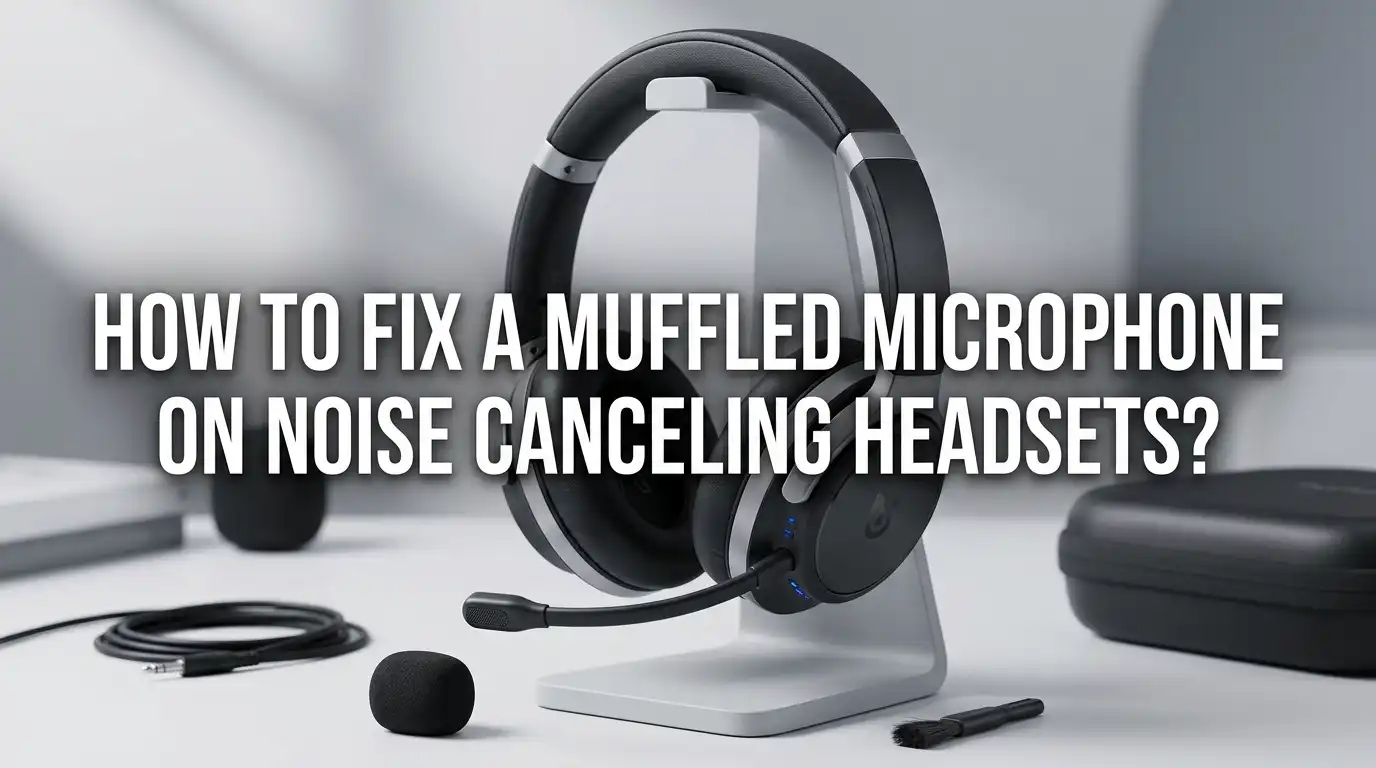
How To Fix A Muffled Microphone On Noise Canceling Headsets?
Your noise canceling headset promises crystal clear calls. Yet, your voice still sounds like you are speaking through a pillow.
This problem frustrates remote workers, gamers, podcasters, and online students every day. The good news is that microphone muffling has clear causes and proven fixes.
This post walks you through every reason your mic sounds dull. You will learn simple settings, hardware checks, and software tweaks. By the end, your voice will sound sharp, natural, and easy to understand.
In A Nutshell:
- Bluetooth bandwidth limits are the top reason wireless headsets sound muffled during calls. The headset switches from high quality A2DP mode to a low quality HFP call mode the moment your mic turns on.
- Audio enhancements in Windows 11, like AI noise suppression and “audio enhancement” features, often strip out important voice frequencies and make your voice sound underwater.
- Physical issues matter too. Dust, lint, sweat, foam covers, and incorrect mic boom positioning can each block sound waves before they reach the microphone capsule.
- Driver problems cause many muffled mic complaints. Outdated, corrupted, or generic drivers fail to handle modern noise canceling features properly.
- Software side fixes include disabling exclusive mode, turning off automatic gain control, and updating firmware through the manufacturer companion app.
- Wired connections almost always beat wireless when voice clarity is the priority. A USB or 3.5mm cable bypasses Bluetooth codec limits entirely.
Why Noise Canceling Headsets Cause Muffled Microphone Audio
Noise canceling headsets use small microphones that pick up ambient sound. The headset then plays an inverse sound wave to cancel that noise. This active processing also affects your voice mic.
The chip inside the headset filters audio in real time. It removes background hum, fan noise, and traffic sounds. Sometimes it also removes parts of your voice that share those frequencies. The result is a flat, hollow, or muffled tone.
Bluetooth makes this worse. Wireless headsets use two profiles. A2DP gives rich stereo audio for music. HFP, or Hands Free Profile, kicks in when the mic activates. HFP uses a much lower bitrate, which causes that classic underwater sound during voice calls.
Once you understand the cause, the fix becomes clear. You either reduce the processing or switch to a connection that handles voice better.
Check The Physical Microphone First
Start with the simplest check. Look at the mic boom or pinhole on your headset. Dust, lint, food crumbs, or even ear wax can block the small opening.
Use a soft dry brush or compressed air to clean the area. Do not push anything sharp into the mesh. A gentle swipe with a microfiber cloth works well for boom mics. For in ear models, check the tiny mic holes near the charging contacts.
Pros of cleaning the mic. It costs nothing, takes two minutes, and often solves the problem completely. Many users skip this step and waste hours on software fixes.
Cons of cleaning the mic. It will not help if the issue is software based. You may also damage the mesh if you press too hard or use water. Always clean with the headset powered off and unplugged for safety.
Adjust The Microphone Boom Position Correctly
A boom mic only works well when placed correctly. Many people position the boom too far from the mouth or directly in front of the lips.
The sweet spot is about two finger widths from the corner of your mouth. The mic should sit slightly below or to the side, never directly under your nose. This avoids breath pops and plosive sounds.
Pros of fixing position. You get instant clarity. Your voice sounds louder without needing to shout. Background noise also gets reduced because the mic stays focused on your voice.
Cons of fixing position. Some headsets have stiff booms that do not bend well. Cheaper models lack adjustable booms entirely. In those cases, you must rely on software fixes instead.
Try recording a quick voice memo after each adjustment. Listen back to find the clearest position before joining a call.
Switch From Bluetooth To A Wired Connection
Wireless freedom comes at a cost. Bluetooth call mode compresses your voice to a fraction of its full quality. Many premium headsets sound worse than a 10 dollar wired mic during calls.
If your headset has a USB cable or 3.5mm jack option, use it. A wired link sends full bandwidth audio in both directions. Your voice keeps its full range, and music quality stays high during calls.
Pros of going wired. You get studio level voice clarity. Battery life stops being a concern. Latency drops to almost zero, which helps gamers and musicians.
Cons of going wired. You lose mobility. Cables can tangle or get in the way during meetings. Some modern headsets also limit features when wired, like disabling active noise canceling on certain models.
For voice work, the trade off is worth it. Save Bluetooth for music or podcast listening only.
Disable Audio Enhancements In Windows
Windows 11 ships with AI noise suppression turned on by default. It tries to clean your voice but often destroys clarity in the process. Turning it off restores natural sound.
Open Settings, then go to System and Sound. Click your microphone under Input. Scroll down to Audio Enhancements and switch it to Off. Test your mic again right away.
Pros of disabling enhancements. Your voice sounds full and natural. The fix is free and reversible. It works for nearly every headset brand on Windows.
Cons of disabling enhancements. Background noise will be more audible. If you work in a noisy room, you may need a different solution like a directional mic or third party software.
For older Windows versions, open Control Panel, choose Sound, right click your mic, select Properties, then go to the Enhancements tab and check “Disable all sound effects.”
Update Or Reinstall Audio Drivers
Outdated drivers cause many muffled mic problems. Generic Microsoft drivers often replace proper manufacturer drivers after a Windows update. The result is a mic that works but sounds wrong.
Open Device Manager and expand “Sound, video, and game controllers.” Right click your audio device and choose Update Driver. Pick “Search automatically for drivers” first. If that fails, visit the headset maker website and download the latest driver manually.
Pros of updating drivers. New drivers fix bugs, improve codec support, and add new features. Many users see instant improvement after a clean install.
Cons of updating drivers. Wrong drivers can make things worse. Always create a system restore point first. Some manufacturers bundle bloatware with their driver packages, so install only what you need.
If updating fails, try uninstalling the device and restarting your computer. Windows will then reinstall a fresh copy of the driver.
Turn Off Exclusive Mode And Signal Enhancements
Exclusive mode lets one app take full control of your mic. Other apps then get blocked or receive degraded audio. This causes muffled output in apps like Zoom or Discord.
Right click the speaker icon in your taskbar and open Sound settings. Find your mic, click Properties, then go to the Advanced tab. Uncheck both “Allow applications to take exclusive control” boxes.
Pros of disabling exclusive mode. Multiple apps can share the mic without conflict. Sample rates stay consistent, which prevents quality drops during calls.
Cons of disabling exclusive mode. Some pro audio apps need exclusive mode for low latency recording. Streamers and musicians may want to keep it on for those specific tools.
Also disable “Signal Enhancements” if you see that option. It often does more harm than good on noise canceling headsets.
Manage Microphone Sensitivity And Levels
Mic levels set too high cause clipping and distortion. Levels set too low force you to speak loudly, which then triggers compression and sounds muffled.
Aim for a level between 70 and 85 percent. Open Sound settings, click your mic, and adjust the input volume slider. Speak normally and watch the meter. It should hit the upper green zone but never max out.
Pros of proper level setting. Your voice sounds balanced. The headset stops fighting you with compression. Listeners hear consistent volume across calls.
Cons of proper level setting. Levels need adjustment per app. Discord, Zoom, and games each have their own input controls. You may need to tune each one separately.
Also turn off “Automatic Gain Control” in app settings. AGC constantly raises and lowers your volume, which creates a pumping muffled effect during pauses.
Update Headset Firmware Through The Companion App
Modern headsets receive firmware updates that fix mic bugs. Brands like Sony, Bose, Jabra, and Logitech push updates through their phone or desktop apps.
Open the companion app and connect your headset. Look for a Firmware or Update section. Install any pending update and let it finish completely. Do not turn off the headset during the process.
Pros of firmware updates. They often fix known mic issues for free. Updates also add new features like sidetone, EQ presets, and codec improvements.
Cons of firmware updates. A failed update can brick your headset. Always keep the device charged above 50 percent before starting. Some older headsets no longer receive updates from the maker.
Check the release notes after each update. Manufacturers often list which mic problems they fixed in plain language.
Try A Different Bluetooth Codec Or Profile
Some headsets support newer codecs like LC3 or Samsung Scalable Codec. These offer better voice quality than standard HFP. Your phone or computer must also support the same codec.
On Windows, you can sometimes force a higher quality profile through Bluetooth settings. On Android, enable Developer Options and choose your codec under Bluetooth Audio settings. Apple devices handle this automatically with AirPods.
Pros of better codecs. Voice quality jumps noticeably. Background noise canceling improves too because the mic has more bandwidth to work with.
Cons of better codecs. Both devices must support the codec. Older laptops and phones lack support. Battery drain may also increase slightly with high quality codecs.
Bluetooth 5.2 and LE Audio are bringing big improvements. If your gear is older than three years, an upgrade might be the real fix.
Use Third Party Voice Enhancement Software
Software tools like NVIDIA Broadcast, Krisp, and RTX Voice clean your mic in real time. They use AI to remove background noise without the muffled side effect of built in Windows tools.
Install the app, set it as your default mic in your call software, and enjoy cleaner audio. NVIDIA Broadcast needs an RTX graphics card, while Krisp works on any computer.
Pros of voice enhancement apps. They remove typing, dog barks, and traffic noise with high accuracy. Your voice still sounds natural and full.
Cons of voice enhancement apps. They use CPU or GPU power, which can slow down games or video editing. Some apps require monthly subscriptions for full features. They also add a small amount of latency, which matters for music or live streaming.
Test free versions before paying. Most users find one tool that fits their setup best.
When To Replace Your Headset
Sometimes the headset itself is the problem. Cheap models use low quality mic capsules that simply cannot deliver clear voice. No software fix will save them.
Signs you need a new headset include consistent muffling across all devices, visible damage to the mic boom, water exposure history, or a mic that worked fine before but suddenly sounds bad. A failing battery can also cause weak mic output on wireless models.
Pros of replacing the headset. You get modern features like better codecs, longer battery life, and improved noise canceling. Newer models also handle calls much better than older ones.
Cons of replacing the headset. It costs money. You also lose any custom settings or pairings. Research reviews carefully before buying, focusing on real world mic samples rather than marketing claims.
Look for headsets praised specifically for mic quality, not just music quality. The two are very different things.
Frequently Asked Questions
Why does my mic sound fine in recordings but muffled on calls?
This happens because of Bluetooth profile switching. Recordings use the high quality A2DP mode. Calls force the headset into low quality HFP mode. Switch to a wired connection or use a separate USB mic for calls.
Can noise canceling itself make my voice sound muffled to others?
Yes, in some cases. Aggressive noise canceling algorithms remove voice frequencies along with background noise. Try turning off ANC during calls to test if your voice clarity improves.
Does humidity or sweat damage headset microphones?
Yes, moisture is a common cause of permanent mic damage. Sweat during workouts, rain, or steam from showers can corrode the small mic components. Always dry your headset with a soft cloth and let it air out after use.
How do I test if my mic problem is hardware or software?
Plug your headset into a different device, like a phone or another laptop. If it sounds the same, the issue is likely hardware. If it sounds better, your original device has a software or driver issue.
Should I keep mic boost turned on or off?
Keep mic boost off unless your voice sounds too quiet at maximum normal volume. Mic boost amplifies everything, including hiss, hum, and background noise. Use proper position and level instead.
Why does my voice sound robotic on noise canceling headsets?
Robotic voice usually points to poor Bluetooth codec quality or aggressive AI noise filtering. Try a wired connection, disable Windows audio enhancements, or switch off your noise suppression software to fix it.

Hi, I’m Frankie Shaw, the founder and writer behind Swittchly 👋. I’m a passionate tech enthusiast who loves exploring the latest gadgets, devices, and electronics that hit the market. Through my honest, research-backed Amazon product reviews, I help readers make smarter buying decisions without the hype or confusion.