How To Transfer Data From An Old Phone To A New 2026 Device?
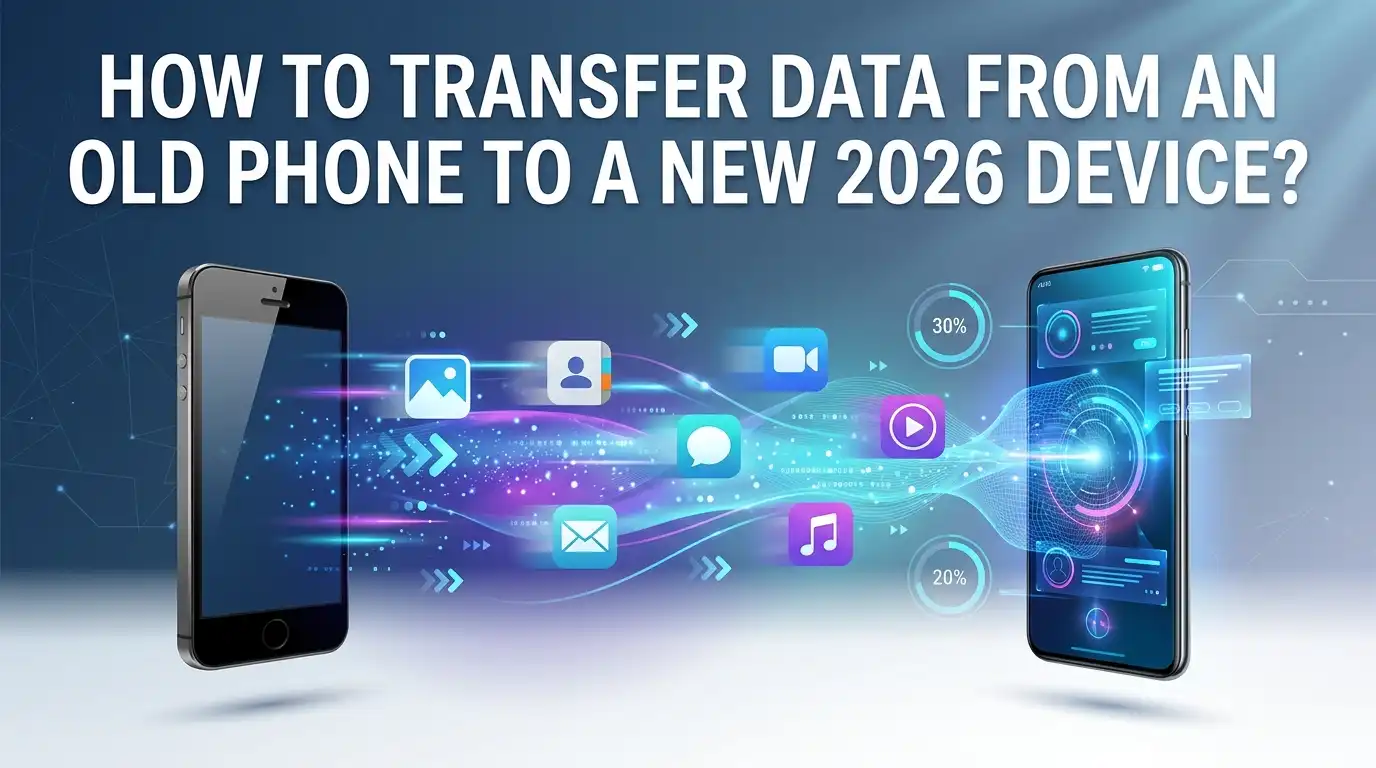
Getting a new phone feels exciting. Then reality hits. You realize all your photos, contacts, messages, and apps still live on your old device.
The thought of moving everything can make you pause before you even start. You worry about losing precious memories or important files along the way.
Good news. Transferring data in 2026 is easier than ever before. Phone makers like Apple, Google, and Samsung have built smart tools that do most of the heavy lifting for you. Most methods now work wirelessly. Some finish in just a few minutes.
Key Takeaways
- Wireless setup tools are your fastest friends. Apple Quick Start and Android device migration transfer most data during the initial phone setup with very little effort from you.
- A cable transfer beats Wi Fi for large data loads. If you have thousands of photos or huge apps, a USB cable connection moves everything faster and more reliably than a wireless option.
- Cloud backups protect you no matter what. Tools like iCloud and Google One keep a copy of your data online, so you can restore your phone even if the old device breaks.
- Cross platform moves need special apps. Switching from Android to iPhone needs the Move to iOS app, while going from iPhone to Android uses the Switch to Android app.
- WhatsApp and some apps need extra steps. Chat history does not always come over automatically, so you must follow a separate transfer process for these apps.
- Always back up before you begin. A fresh backup acts as your safety net if anything goes wrong during the transfer.
Why You Should Back Up Before You Transfer
Always create a backup before you start any transfer. This step acts as your insurance policy. A backup keeps your data safe even if the transfer fails halfway through. Phones can disconnect. Batteries can die. Wi Fi can drop. A backup means none of these problems cost you your photos or files.
Both iPhone and Android make backups simple. On an iPhone, you save your data to iCloud. On Android, you use Google One backup. These backups store your contacts, messages, app data, and settings in the cloud. You can then restore them onto your new device whenever you want.
Think of a backup as your reset button. If the new phone setup goes wrong, you simply start again. You lose nothing. Spending five minutes on a backup saves you hours of stress later. Never skip this step.
How To Use Apple Quick Start For iPhone To iPhone Transfers
Quick Start is the easiest way to move data between two iPhones. This tool works during the setup of your new phone. You do not need a computer. You do not need an old backup. The two phones simply talk to each other and copy everything across.
Turn on your new iPhone. Place it next to your old one. A prompt appears on your old phone asking to set up the new device. Tap Continue. Hold your old phone over the new one so the camera captures the animation. Then choose Transfer from iPhone to move your data directly.
Pros: This method moves nearly everything, including apps, settings, and Apple Pay cards. It needs no cables and no extra apps.
Cons: Both phones stay locked during the transfer. Large data loads can take a long time over Wi Fi. Keep both phones charged and close together until it finishes.
How To Restore An iPhone From An iCloud Backup
iCloud restore works great when your old phone is gone, broken, or already traded in. You only need a recent iCloud backup and your Apple Account password. This method pulls your data down from the cloud onto your new iPhone.
First, make sure your old phone has a current backup. Go to Settings, tap your name, then iCloud, then iCloud Backup. Tap Back Up Now. Wait for it to complete. Now set up your new iPhone. When you reach the Apps and Data screen, choose Restore from iCloud Backup. Sign in and pick your latest backup.
Pros: You do not need your old phone present. This method is perfect for replacement or repair situations.
Cons: The speed depends on your internet connection. A slow connection makes large restores painful. You may also need enough free iCloud storage, which sometimes means paying for more space.
How To Transfer Data From Android To Android Wirelessly
Android phones include a built in migration tool. This tool runs during the setup of your new device. It copies your apps, photos, contacts, and settings without any cables. Google has made this process smooth across most modern Android phones.
Turn on both phones. Your new phone shows setup instructions on screen. Tap to start copying data from your old phone. The phones connect wirelessly. You then choose what you want to bring over. You can select everything or just pick certain items like contacts and photos.
Pros: This method is free and built right into Android. It works between different brands, not just the same maker. You control exactly what transfers.
Cons: Wireless transfers can run slow with large amounts of data. Some app data and settings may not carry over perfectly. You might need to log back into certain apps afterward. Keep both devices plugged in during the move.
How To Transfer Android Data Using A USB Cable
A cable transfer is the fastest way to move data between two Android phones. Wired connections beat Wi Fi for speed and reliability. This option shines when you have thousands of photos or many large apps to move.
You need a USB cable that connects both phones. Most newer phones use USB C to USB C. During the new phone setup, choose to copy data from your old device. When prompted, connect the two phones with the cable. The data then flows directly between them with no internet needed.
Pros: Speed is the big win here. Cables move huge data loads much faster than wireless. The connection stays stable and does not drop.
Cons: You need the right cable, and sometimes an adapter. Not everyone has a USB C to USB C cable lying around. The phones must stay connected the whole time, so you cannot move around freely during the transfer.
How To Use Samsung Smart Switch For Galaxy Phones
Samsung Galaxy users have their own powerful tool called Smart Switch. This app moves nearly everything from an old phone to a new Galaxy device. It works both wirelessly and with a cable. Smart Switch even pulls data from older non Samsung Android phones.
Install Smart Switch on both phones if it is not already there. Open the app on each device. On the old phone, tap Send data. On the new phone, tap Receive data. Choose wireless or cable. For wireless, place the phones within four inches of each other and follow the prompts.
Pros: Smart Switch transfers a wide range of data, including home screen layouts and settings. It supports both Galaxy and other Android phones.
Cons: This tool works best with Samsung devices. Some features are limited when moving from other brands. Wireless transfers still take time with large libraries, so a cable remains the faster choice.
How To Move Data From Android To iPhone
Switching from Android to iPhone needs the free Move to iOS app. Apple built this app to make the jump simple. It copies your contacts, message history, photos, videos, and more onto your new iPhone.
Start setting up your new iPhone. When you reach the Apps and Data screen, choose Move Data from Android. On your Android phone, download and open the Move to iOS app. Tap Continue on both devices. A code appears on the iPhone. Enter it on your Android phone. Then pick the data you want to move.
Pros: The app is free and made by Apple. It moves your main data types in one go. The process is guided and clear.
Cons: Both phones must stay on the same Wi Fi network. The transfer can fail if the connection drops. Some apps will not move and must be downloaded fresh from the App Store. Paid Android apps do not carry over.
How To Move Data From iPhone To Android
Going the other way is just as doable. Google offers the Switch to Android app, and most Android phones include a built in tool for iPhone users. These tools copy your contacts, photos, videos, calendar events, and messages.
You can transfer wirelessly or with a cable. For a cable transfer, connect both phones during the Android setup. Choose to copy data from an iPhone. Follow the prompts to select what moves. One important step is to turn off iMessage on your old iPhone first. This stops your texts from getting stuck in Apple’s system.
Pros: The process is free and supported by Google. A cable connection makes the transfer fast and stable.
Cons: Not every app or setting moves across. You must redownload apps from the Google Play Store. Forgetting to turn off iMessage can cause you to miss text messages later, so do not skip that step.
How To Transfer Your Photos And Videos Separately
Sometimes you only want to move your photos and videos. Cloud photo services make this very easy. Google Photos and iCloud Photos both store your media online and sync it across devices.
If you use Google Photos, simply install the app on your new phone. Sign in with the same Google account. Turn on backup and sync. Your entire photo library appears on the new device automatically. For iPhone users, turn on iCloud Photos in Settings and your library syncs the same way.
You can also request a transfer of your photos between Google and Apple services. This helps when you switch platforms completely.
Pros: Your photos stay safe in the cloud and sync everywhere. You can access them from any device with your account.
Cons: Free storage runs out fast with large libraries. You often need to pay for extra space. The initial sync needs a good internet connection and can take a while.
How To Transfer WhatsApp Chats To Your New Phone
WhatsApp chats do not always move automatically. This app stores your history in its own way, so it needs a separate process. The steps differ depending on whether you switch platforms or stay on the same one.
If you stay on the same platform, use a backup. Back up your chats to Google Drive on Android or iCloud on iPhone. Then install WhatsApp on the new phone, verify your number, and restore the backup. For cross platform moves, you must use the in app transfer feature with a cable.
To move from iPhone to Android, open WhatsApp on the iPhone, go to Chats, then Transfer chat history. Connect both phones with a cable and follow the steps.
Pros: You keep your full chat history and media. The official method is free and secure.
Cons: Cross platform transfers can be fiddly. Many users find this process more complicated than it should be. A cable is often required, so have one ready.
How To Transfer Data Using A Computer
A computer gives you another reliable way to move data. This method works well for big transfers and for keeping a local backup. Both Apple and Samsung offer desktop software for this purpose.
For iPhone, connect your old phone to a computer and create a full backup using Finder on Mac or the Apple Devices app on Windows.
Then connect your new iPhone and restore that backup. For Samsung phones, install Smart Switch on your PC or Mac. The software backs up your old phone, then loads everything onto the new one.
Pros: A computer backup stays on your hard drive, giving you a permanent copy. Wired transfers through a computer are fast and stable.
Cons: You need a computer and the right software. The process has more steps than a simple phone to phone transfer. It takes up storage space on your computer too.
What To Do After The Transfer Finishes
Your transfer is done, but a few final steps make sure everything works. First, check that your important data actually arrived. Open your contacts, photos, and messages to confirm they are all there.
Next, sign back into your apps. Many apps like banking and social media log you out during a transfer. Reenter your passwords and set up two factor authentication again. Some apps need you to verify your identity before they work.
Then update your apps from the store. Run any pending system updates on your new phone too. This keeps everything secure and running smoothly. Finally, only wipe your old phone after you confirm the new one has everything. Perform a factory reset to remove your personal data before you sell or recycle it. This protects your privacy.
Common Problems And How To Fix Them
Transfers usually go smoothly, but problems can pop up. Knowing the fixes saves you frustration. Most issues have simple solutions you can try right away.
If a wireless transfer stalls, check that both phones share the same Wi Fi network. Keep the devices close together and plugged in. Restart both phones if the connection keeps dropping. For cable transfers, try a different cable or port if nothing happens.
If some apps are missing, remember that apps often do not transfer directly. You simply redownload them from your app store. Your account logins and cloud data return when you sign back in.
If contacts are missing, make sure they are saved to your account and not just the SIM or old device. A quick account sync usually brings them back.
Frequently Asked Questions
How long does it take to transfer data to a new phone?
The time depends on how much data you have and the method you use. A small transfer with a cable can finish in a few minutes. A large wireless transfer with thousands of photos may take an hour or more. A cable connection is always faster than Wi Fi for big data loads.
Can I transfer data without Wi Fi?
Yes. A USB cable transfer needs no internet at all. The data moves directly between the two phones or through a computer. This is the best choice when you have no Wi Fi or a slow connection. Cloud based methods, however, do require an internet connection to work.
Will my apps move to the new phone automatically?
Most setup tools redownload your apps for you, but not all app data carries over. Some apps log you out and need a fresh sign in. Apps like WhatsApp need a separate backup or transfer step. Always check your important apps after the transfer and log back in where needed.
Do I need to keep my old phone during the transfer?
It depends on the method. Direct phone to phone transfers need both devices present and powered on. Cloud restore methods do not need the old phone, since your data lives online. If your old phone is broken, a cloud backup is your best option.
Is it safe to transfer data between different phone brands?
Yes, it is safe. Android migration tools and apps like Move to iOS support transfers between different brands. The official tools use secure connections to protect your data. Just remember that some features and apps may not carry over perfectly when you switch between Android and iPhone.
What should I do with my old phone after transferring?
Confirm your new phone has everything first. Then sign out of your accounts like your Apple ID or Google account. Perform a factory reset to erase all your personal data. This keeps your information private before you sell, trade in, or recycle the device.

Hi, I’m Frankie Shaw, the founder and writer behind Swittchly 👋. I’m a passionate tech enthusiast who loves exploring the latest gadgets, devices, and electronics that hit the market. Through my honest, research-backed Amazon product reviews, I help readers make smarter buying decisions without the hype or confusion.